


GIF maker & editor - GifBuz
4.3265.00 Reviews
App Specs
- Version
- 2.0.47
- Updated On
- License
- Free
- Downloads
- 100,000+
- Developer
- Brain Craft Limited
- Categories
- Video Players & Editors
- Platform
- Android
Screenshots
 Analysis by AppCompare
I reach for a GIF maker when a short reaction or small visual joke will say more than a string of messages. GIF maker & editor - GifBuz is built around that quick, hands-on kind of creation: start with a clip or photos, shape the result, then pass it along. I like that the idea is simple enough for a casual user, while the editing options leave room to make the final loop feel personal rather than generic.
A practical starting point for small ideas
GifBuz is a free Android app from Brain Craft Limited, in the video-player and editing space. It has a 4.3 average from around 2.9 thousand ratings, and more than 100 thousand installs. It is rated Teen, runs on Android 6.0 and later, and its current version is 2.0.47. Those details make it easy to place: it is a focused creative utility, not a full video-editing suite or a social network of its own.
When I first opened GifBuz, I was greeted by a clean and user-friendly interface. The app doesn’t waste time with complicated menus or overwhelming options. Instead, it gets straight to the point, making it super easy even for a newbie to dive right in. The layout is intuitive, so it didn’t take long before I was ready to start creating.
The app allows you to create GIFs from a variety of sources. Whether you want to use a video from your gallery or shoot something new on the spot, GifBuz has got you covered. You can also choose to stitch together a series of photos. I tried all three methods, and each one was seamless.
That choice of starting material is useful in ordinary situations. I might pick a brief clip of a pet doing something unexpectedly expressive, or combine a handful of stills from a family moment when I did not record video. For a quick group-chat reaction, starting with a clip is usually the more natural route; for a simple before-and-after or a sequence of poses, photos give me more control over what appears in the loop.
A small but worthwhile habit is to decide what the GIF needs to communicate before editing. If the point is a facial expression, I would keep the crop tight and remove the lead-in and tail where nothing happens. If it is a process or a change over time, a wider frame and a slower pace may explain the action better. That bit of planning can save more time than trying every effect after the fact.
From rough clip to shareable loop
I find the best way to judge a GIF maker is to follow one idea all the way from source material to the moment it reaches someone else. This section looks at how I turn a rough clip into a loop that reads clearly, including the choices that matter before effects and captions come into play. From there, I’ll look at how small edits can improve the result without burying the original moment.
Worth Reading Before You Choose

EA SPORTS FC Mobile 26 Is a Bigger Football Game, but It Takes Time

Flipboard Shows What News Apps Must Do Beyond the Feed

Switching to Android Auto Means Rethinking Your Driving Routine

Google Calendar Makes a Crowded Week Easier to Manage

Ludo King Makes the Most of the Minutes Between Plans

Baby Panda World Brings Quick Play to Modern Phones, but Its Game Library Feels Busy
Editing for clarity, not just decoration
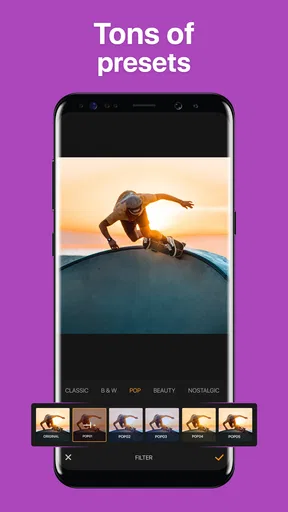
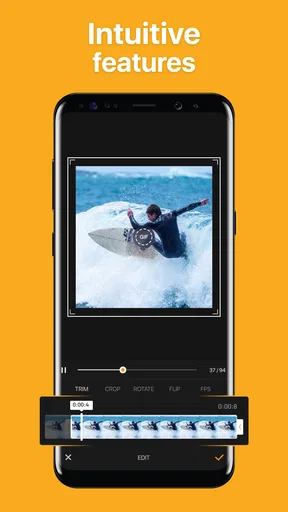
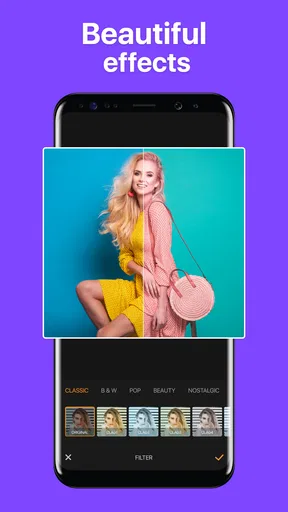
One of the standout features of GifBuz is its editing tools. Once you’ve got your images or videos loaded up, you can trim, crop, and even add filters to your GIF. The app offers a range of filters that can add a unique touch to your creations. I was particularly fond of the vintage filter—it gave my GIFs a nostalgic feel.
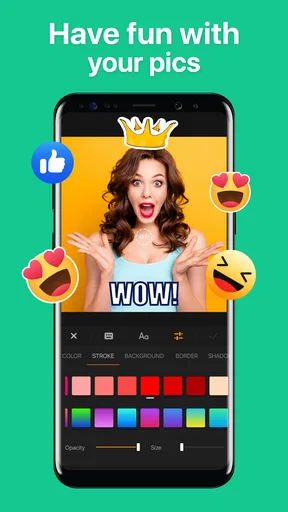
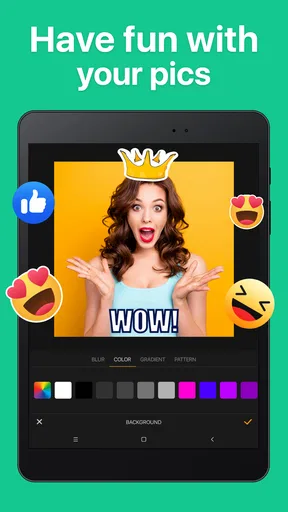
Adding text and stickers is another breeze with GifBuz. The text editor is straightforward, allowing you to choose from a variety of fonts and colors. I found myself spending quite a bit of time playing around with different styles until I got the perfect look.
For a more readable result, I would treat text as a caption rather than an extra decoration. A short phrase placed over an uncluttered part of the image is easier to catch during a loop than a long sentence competing with the action. Stickers can add character, but they can also hide the detail that makes a reaction funny, so I find it better to add them only when they support the moment.
Crop choices matter especially when the source video was filmed for a different purpose. A phone clip may include a lot of empty background or movement at the edges; trimming the frame can make the GIF easier to understand in a small chat preview. I would check that the subject stays visible throughout the loop before settling on a crop, since a framing choice that works on the first frame can cut off a gesture near the end.
Let’s not forget about the speed controls. You can adjust the speed of your GIFs with just a few taps, either slowing them down or speeding them up to match the vibe you’re going for. This feature is especially fun when you’re trying to highlight a particular moment or add a bit of humor.
Speed is not only a comic effect. Slowing a brief movement can make it easier to notice what happened, while speeding up a long, uneventful stretch can keep the loop lively. I would avoid changing the pace without checking the full sequence, though: an exaggerated speed can make an ordinary action confusing, and a slow loop can feel tedious if it repeats for too long.
Iteration without losing the point
My most useful workflow is to make a plain first pass: choose the source, trim to the action, set the crop, and check the speed. Only after the loop reads clearly do I add a filter, caption, or sticker. This order keeps the editing focused. It also makes it easier to tell whether an effect improves the GIF or merely makes it busier.
For example, if I were turning a quick kitchen mishap into something for friends, I would select only the moment of surprise, crop out unrelated counter space, and keep the caption brief. A filter might help if the clip’s lighting feels dull, but it is not a substitute for choosing the right few seconds. The joke has to work before the decoration does.
There is a trade-off between polish and speed. GifBuz’s accessible tools encourage quick experimentation, which suits casual sharing, but a person who wants detailed control over a multi-scene edit may find a dedicated desktop editor more comfortable. A GIF is also a compact loop rather than a replacement for a full video: if sound, a longer explanation, or fine-grained timeline work matters, I would keep the source as a video and edit it in an app designed for that job.
Compared with the usual alternatives, GifBuz sits between a messaging app’s built-in GIF search and a more involved video editor. A built-in GIF library is quicker when I only need a reaction someone else has already made, but it cannot tailor a personal clip in the same way. A general video editor can provide a broader production workflow, yet may add steps and controls that feel unnecessary for a small looping image. GifBuz makes the most sense when the source is mine and the goal is to turn it into a quick, expressive share.
Sharing, saving, and handing off
Once you’ve crafted the perfect GIF, sharing it is a cinch. GifBuz integrates smoothly with social media platforms, so you can upload your creations directly to Instagram, Facebook, or wherever else you want to share your masterpiece. I found this integration super helpful, as it saved me the hassle of saving and then uploading manually.
For those who like to keep their creations a bit more private, you can also save your GIFs to your device or send them via messaging apps. I sent a few to friends and family, and they were impressed with the quality.
Before sending a finished loop, I would check how it looks at the size people are likely to see in a conversation. Fine text and subtle details can disappear when an image is viewed small, so a bold, short caption is usually safer than a carefully styled paragraph. If a platform handles GIFs differently from a messaging app, saving a copy first gives me a useful fallback and lets me choose the destination myself.
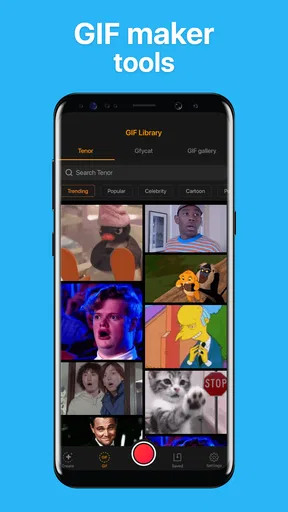
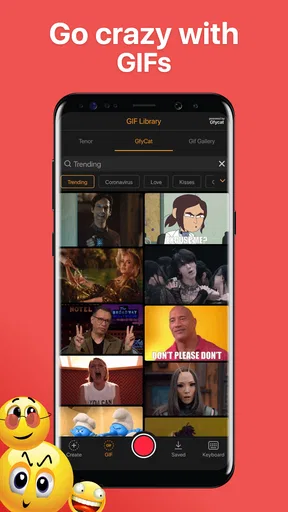
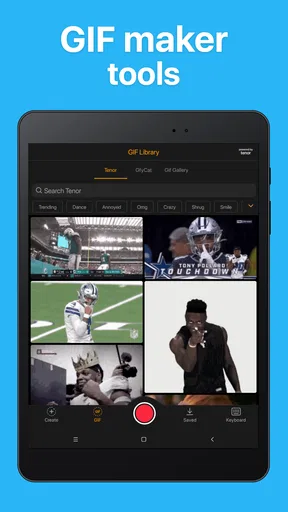
The app’s store summary also calls out a GIF keyboard, which points to a convenient use beyond making a single file: having GIFs ready to use while messaging. I would think of that as a separate part of the workflow from editing. Creation is best done when I can focus on selecting and refining a source; using a keyboard is more about quickly inserting something into a conversation. If speed in everyday chats matters more than custom edits, that distinction may help decide whether GifBuz belongs in your routine.
GifBuz is free to download, with in-app purchases ranging from $2.99 to $19.99 per item. I would try the basic workflow before paying for anything: the key question is whether its source selection, edits, and sharing fit the way I actually make GIFs. Someone who only creates an occasional loop may be satisfied without spending; a frequent creator should consider whether any paid option solves a specific need rather than buying simply because it is offered.
Performance and usability
In terms of performance, GifBuz runs smoothly without any noticeable lag. The app didn’t crash once during my time using it, which is a big plus in my book. It also doesn’t hog your device’s resources, so you can multitask without worry.
The developers have clearly put a lot of thought into the usability of this app. Everything is where you expect it to be, and there’s a handy help section if you ever get stuck. I didn’t need to use it, but it’s nice to know it’s there.
Even with a straightforward layout, the quality of the original material still shapes the result. A shaky or dim clip will not become clear just because it has a filter, and a crowded frame can remain hard to read after adding text. I would pick a well-lit moment with one clear subject whenever possible, then use trimming and cropping to remove distractions. That is a practical limitation of the source as much as the editor, but it matters when deciding what to expect from a quick GIF-making tool.
GifBuz is a better fit for people who enjoy turning personal clips and photos into lightweight visual messages: casual creators, group-chat regulars, and anyone who wants to add a custom caption or pace to a moment. I would steer away from it if I needed professional timeline controls, a polished long-form video, or a workflow built around detailed motion design. It is also less useful if I rarely make my own GIFs and am happy choosing from existing reactions.
A creator’s verdict
All in all, GIF maker & editor - GifBuz is a delightful app that brings a lot of fun to the table. It’s user-friendly and packed with features that make creating GIFs not just easy, but enjoyable. Whether you’re a social media enthusiast or just love capturing moments in a unique way, GifBuz is definitely worth checking out.
So, if you’re looking to add a little zing to your digital content, give GifBuz a try. With its robust features and seamless sharing options, it’s the perfect companion for anyone looking to dabble in the world of GIFs.
My recommendation is to approach it as a small creative tool, not an all-purpose editor: bring a clear moment, keep the loop focused, and add only the touches that help someone understand or enjoy it. That is where the app feels most useful. If that sounds like the way you want to make and share visual reactions, it is worth trying; if your work needs a deeper production setup, another editor will be a better match.
Pros
- User-friendly interface for quick edits.
- Wide range of editing tools available.
- Supports various file formats.
- High-quality GIF output.
- Fast export and sharing options.
Cons
- Contains in-app ads and purchases.
- Limited free features available.
- Occasional crashes on older devices.
- Requires internet for some features.
- Large file sizes for high-quality GIFs.
FAQs for GIF maker & editor - GifBuz
What are the main features of GifBuz?
GifBuz offers a comprehensive suite of tools for creating and editing GIFs. Users can convert videos to GIFs, merge multiple images into a single GIF, and add text or stickers. The app also includes features for adjusting speed and adding filters, making it versatile for both casual users and professionals.
Is GifBuz user-friendly for beginners?
Yes, GifBuz is designed with an intuitive interface that caters to beginners. The app includes easy-to-follow tutorials and a simple layout, allowing users to quickly learn how to create and edit GIFs without prior experience. Even those new to GIF creation can produce high-quality results efficiently.
Does GifBuz support high-resolution GIFs?
GifBuz allows users to create high-resolution GIFs, making it suitable for professional use and social media sharing. The app ensures that users can maintain quality while compressing file sizes, offering a balance between high-quality visuals and efficient storage use.
Are there any limitations in the free version of GifBuz?
The free version of GifBuz includes basic features like GIF creation and simple editing tools. However, advanced functionalities such as premium filters, ad-free experience, and high-resolution exports may require a subscription. Users can explore the free version to determine if the premium features are necessary for their needs.
How can I share my GIFs created with GifBuz?
GifBuz makes it easy to share your creations directly from the app. Users can instantly upload GIFs to social media platforms like Instagram, Facebook, and Twitter, or send them via messaging apps. The app also supports saving GIFs to your device for later use or uploading to cloud storage.


